Multiple Monitor Setup
How to setup and configure multiple monitors.
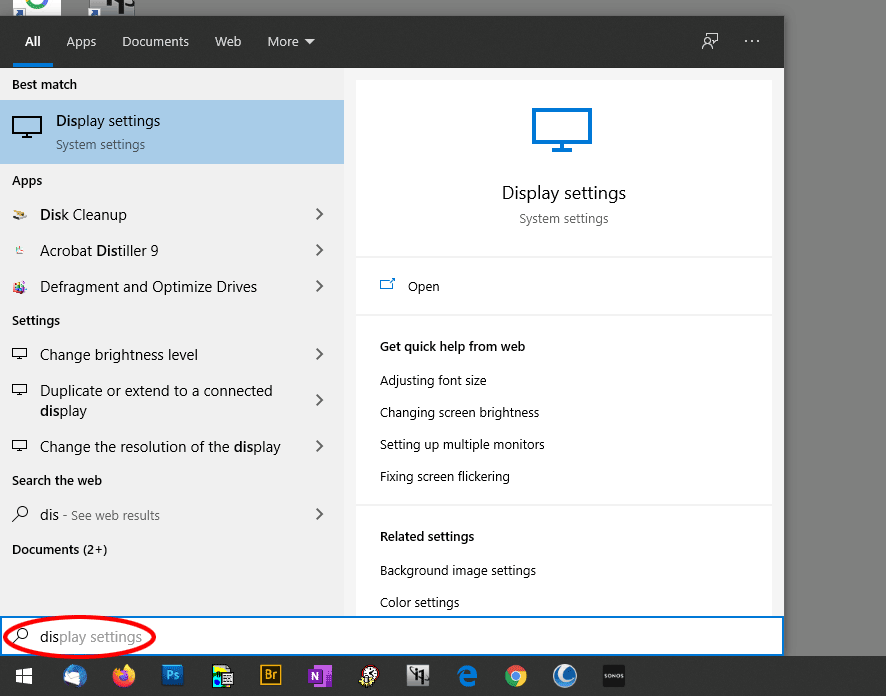
Once you’ve plugged in your two screens and booted up, hold down the Windows key and press S to get your search bar, then begin typing "Display" to access the Display Settings window.
When that window opens, immediately scroll down to the Multiple Displays area, and make sure it’s set to "Extend these displays":
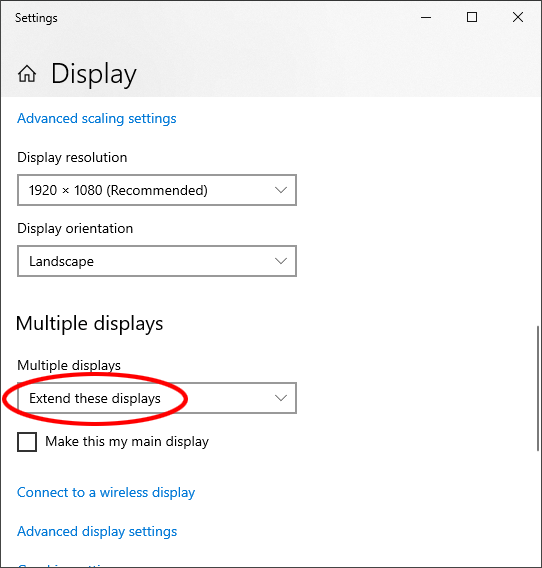
I cannot stress this enough. By default it will be on "Duplicate", but duplicating the screens is a very bad idea. For starters it ruins the benefit of having two screens worth of space in the first place. But more importantly, it ruins your calibration. You can’t calibrate both screens while duplicating; instead it will try to force one screen’s calibration profile onto the other screen, with inaccurate results. Your displays must be extended.
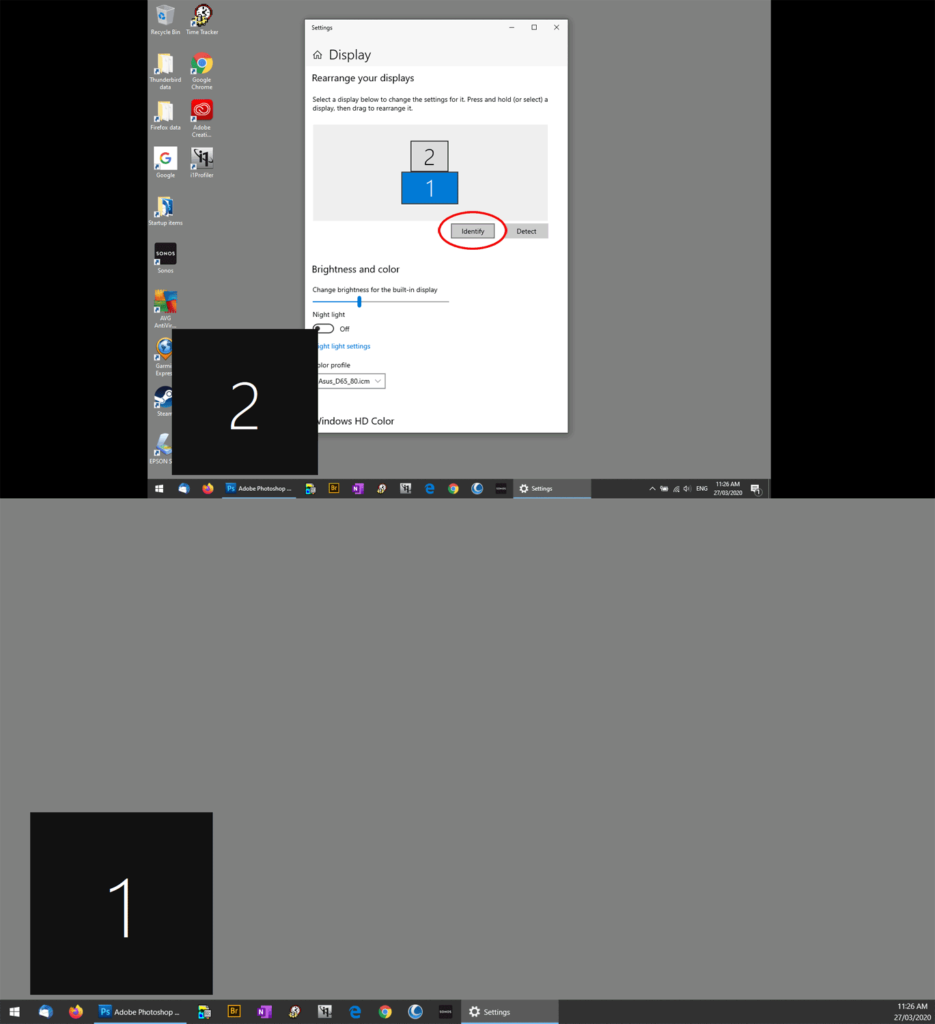
Next, scroll back to the top and hit the "Identify" button. That will briefly show you which is Screen 1 and which is Screen 2: