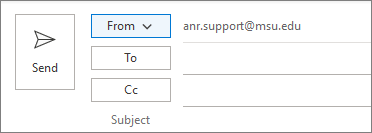
Sending from an Alternate Email Address in Outlook
Sending from an Alternate Email Address in Outlook
1. Open a New Email in Microsoft Outlook.
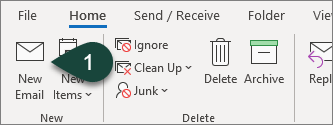
2. Select the Options Tab.
3. Select From in the Show Fields section. This will add the From field to your email.
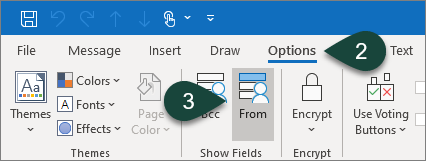
3. Select From in the Show Fields section. This will add the From field to your email.
4. Select the From Drop-Down Menu above the To field.
5. Select Other Email Address
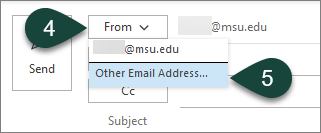
5. Select Other Email Address
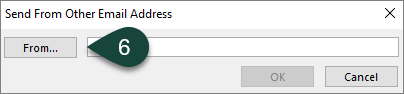
6. Select From.
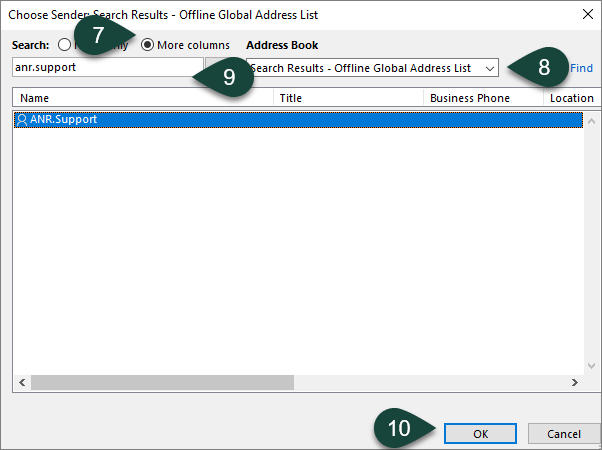
7. Select More Columns.
8. Ensure the Global Address Book is selected in the drop-down menu.
9. Search for the Email Address you wish to send from.
10. Select Ok.
11. Select Ok
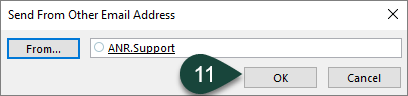
12. Continue the rest of your email.